
Enhancing your reports with custom branding can significantly improve their professional appearance and credibility. Add your own banner and disclaimer so each report aligns with your organization's identity. From version 3.6.0 you can also set the report font and heading colour.
Example report with custom branding
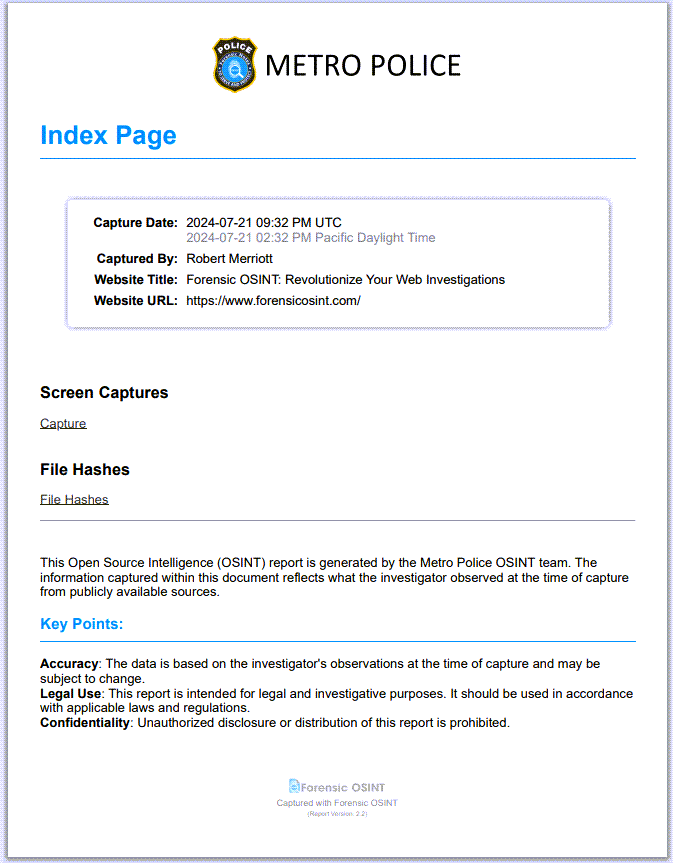
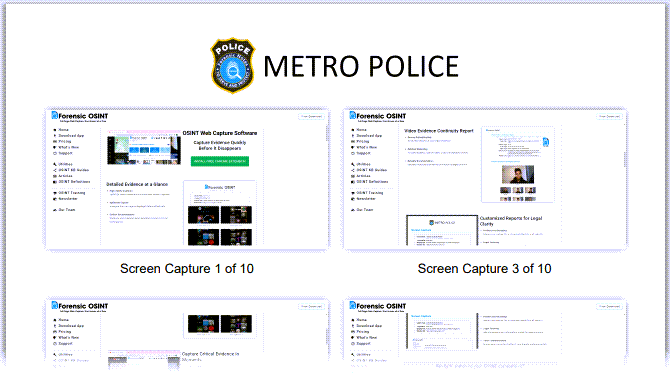
How to customize branding
Follow these steps to customize your reports:
- Go into Case Management System (CMS)
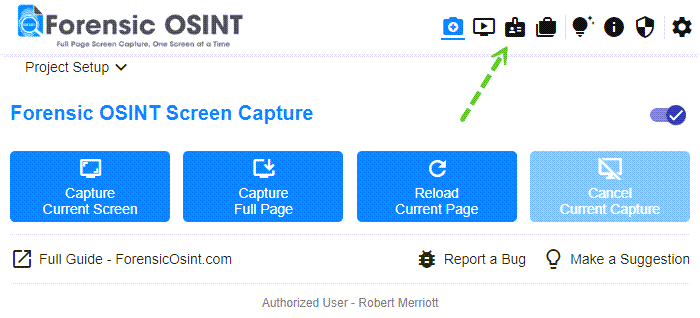
Opening the Case Management System - Navigate to Settings >> Custom Report Branding
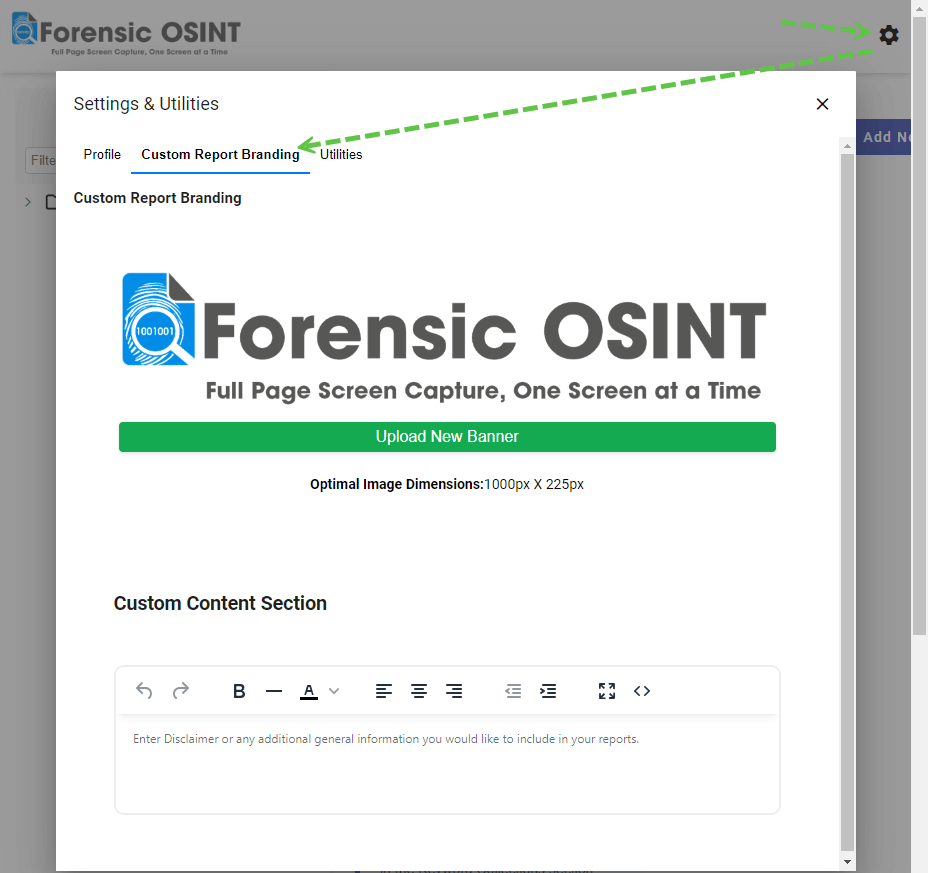
Navigating to Custom Report Branding settings - Click on the banner logo to select a new one from your computer
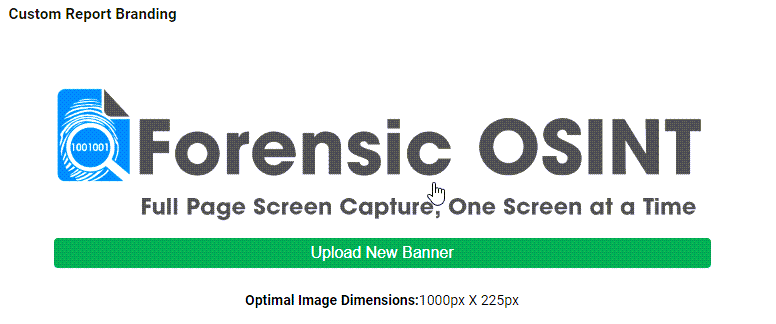
Selecting a new banner logo Tip: Optimal image dimensions are 1946px X 383px. Learn how to fine-tune your banner with proper padding and formatting.
- Set the report font and heading colour
In the same Custom Report Branding panel, choose the typeface used for headings and body text, and whether headings stay blue or render in black. A live preview shows how section headings will look before you save.

Report Font and Heading Colour controls, with a live preview - Add your custom disclaimer
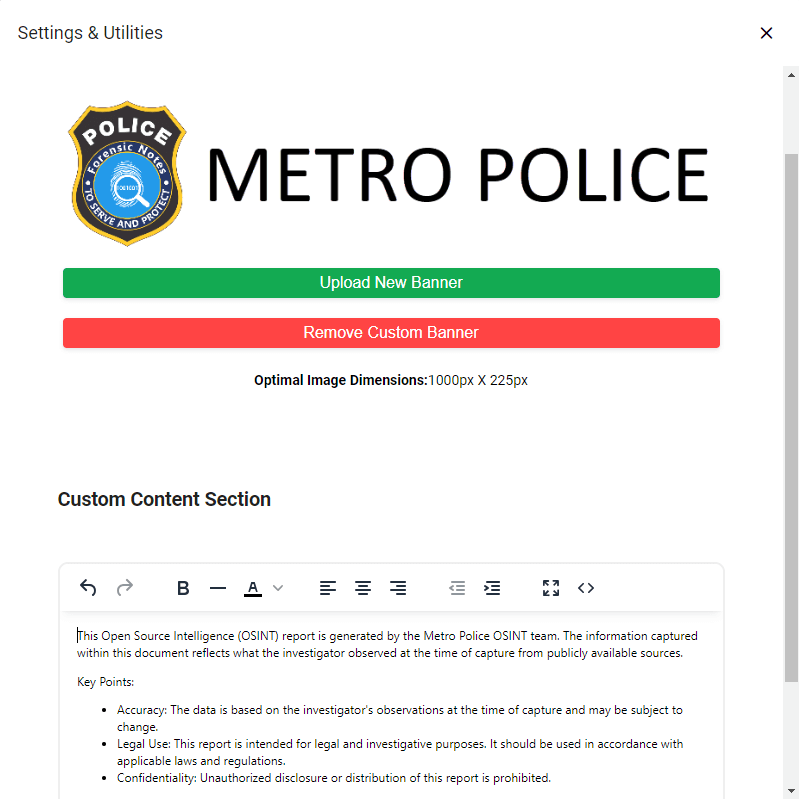
Adding a custom disclaimer to your reports
Report font and heading colour
These two settings live in Custom Report Branding and apply to generated PDF reports.
- Report Font sets the typeface used for headings and body text. Arial is the Forensic OSINT default.
- Heading Colour has two options. Blue headings is the long-standing Forensic OSINT look. Black text renders report headings and body text in black, which is recommended for documents prepared for legal proceedings.
New reports vs existing reports
Reports generated from version 3.6.0 onward use a slightly updated Capture Details layout compared with reports generated in earlier versions. The capture metadata is the same. The block is laid out a little differently.

Font and colour apply going forward. Changing the report font or heading colour only affects reports generated after you save the setting. PDFs you already have keep their original font, colour, and layout. To apply the new font, heading colour, or layout to an existing capture, regenerate that capture's PDF from the capture menu (three-dot menu → Re-Generate PDF Report).
Disclaimer
The disclaimer section can be tailored to suit your organization's requirements.
You can include a custom disclaimer along with additional information about your organization or details on how you conduct OSINT investigations.